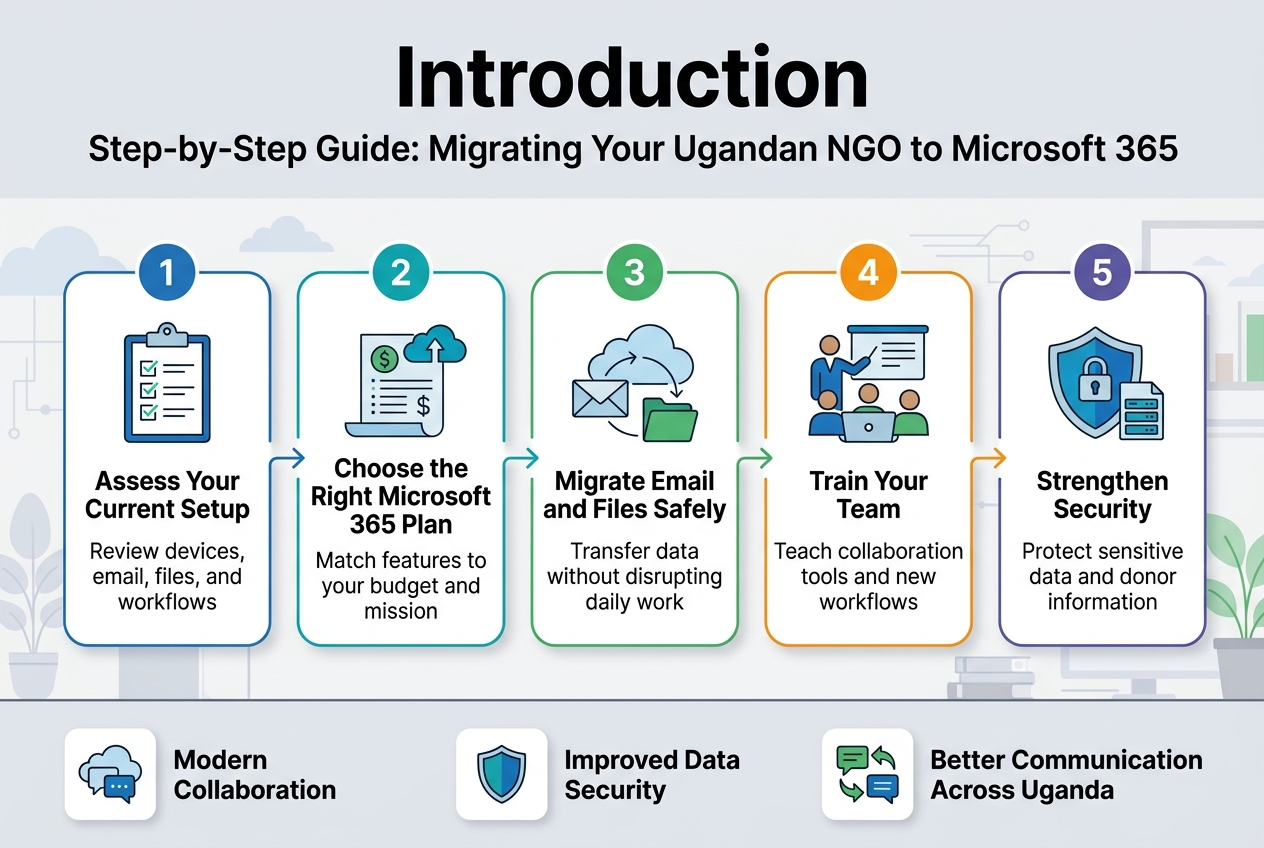
Step-by-Step Guide: Migrating Your Ugandan NGO to Microsoft 365
Your Ugandan NGO needs reliable digital tools to serve your community better, but switching to Microsoft 365 feels overwhelming. This comprehensive migration guide walks NGO leaders, IT coordinators, and operations managers through each step of moving your organization to Microsoft 365 without disrupting your daily work.
You’ll learn how to assess your current technology setup and choose the right Microsoft 365 plan that fits your NGO’s budget and mission. We’ll cover the technical steps of migrating your email data and files safely, plus show you how to train your team on new collaboration features. Finally, you’ll discover essential security measures to protect your organization’s sensitive data and donor information.
By following this step-by-step approach, your NGO will gain modern collaboration tools, improved data security, and better communication systems to amplify your impact across Uganda.
Assess Your NGO’s Current IT Infrastructure and Requirements
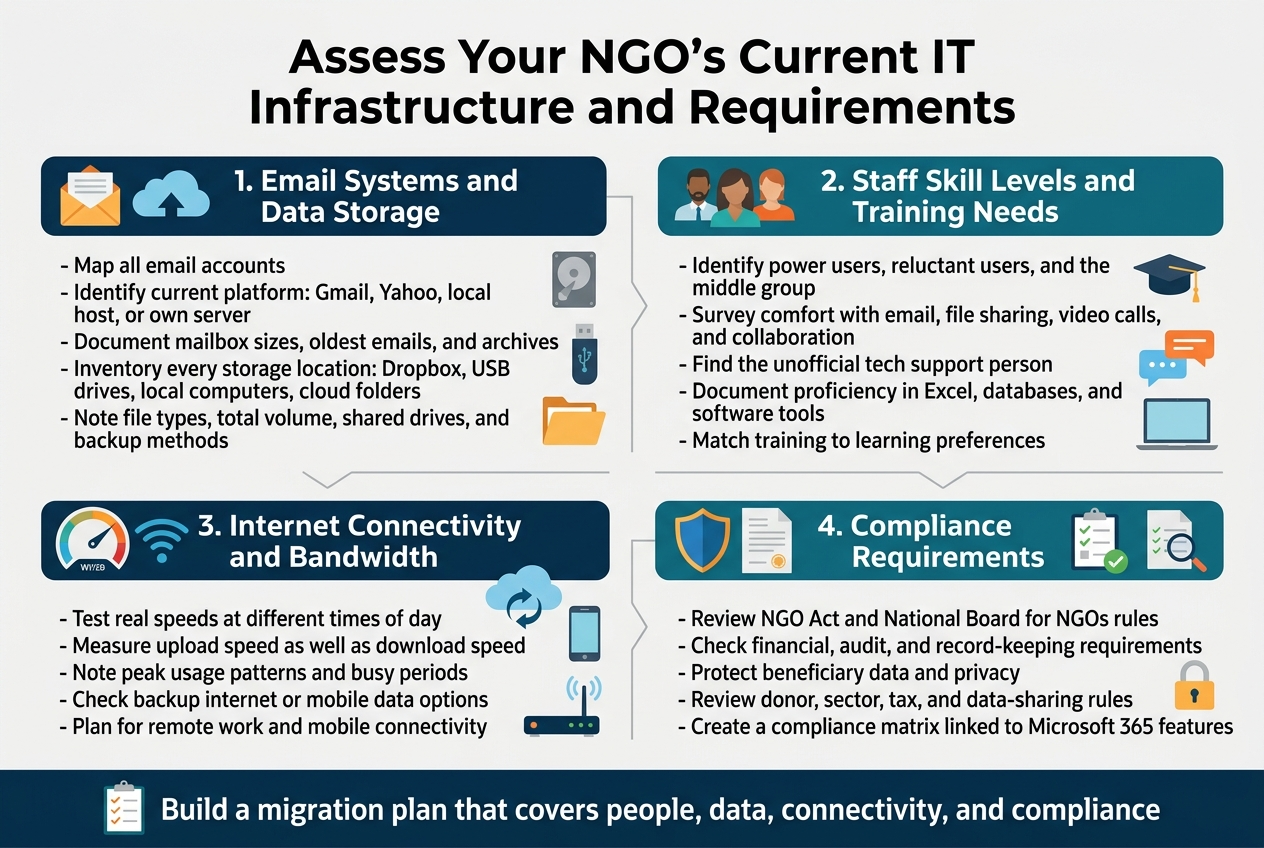
Evaluate existing email systems and data storage solutions
Your current email setup probably feels like an old friend – familiar, but maybe not doing everything you need. Before jumping into Microsoft 365, you need to understand exactly what you’re working with right now. Start by mapping out every email account your NGO uses, from the director’s official address to those project-specific accounts that somehow multiply when nobody’s looking.
Check what email platform you’re currently using. Are you on Gmail, Yahoo, a local hosting provider, or maybe running your own email server? Each scenario presents different migration challenges and opportunities. If you’re using Gmail, the transition to Microsoft 365 might feel more dramatic since you’ll be switching ecosystems entirely. However, if you’re on an older system or unreliable local hosting, the upgrade could solve multiple headaches at once.
Document how much email data you have across all accounts. Look at mailbox sizes, the age of your oldest emails, and any archives you’ve been maintaining. Some NGOs discover they have years of correspondence stored in various places – individual computers, external drives, or cloud services they forgot they were paying for. This inventory becomes crucial when planning migration timelines and storage requirements.
Storage solutions deserve equal attention. Walk through your organization and identify every place data lives. You might find project files scattered across personal Dropbox accounts, USB drives in desk drawers, and shared folders on aging computers. Note what types of files you’re storing – documents, images, videos, databases – and estimate the total volume. Don’t forget about specialized software that might have its own data formats or backup systems.
Pay special attention to shared drives and collaboration methods. How do staff members currently share files? Are you emailing documents back and forth, using a mix of cloud services, or relying on a central server that sounds like it’s auditioning for a horror movie? Document the pain points people complain about most. Maybe files disappear, versions get confused, or accessing information from home feels impossible.
Look at backup procedures too. Who’s responsible for backing up what, and how often does it actually happen? Some organizations discover their backup strategy is “hope nothing breaks” or relies on one person who’s been doing it manually for years. Understanding your current backup situation helps prevent data loss during migration and shows where Microsoft 365’s automatic backup features will provide immediate value.
Identify staff technical skill levels and training needs
Every NGO has a mix of tech-savvy staff and people who still call the computer tower “the hard drive.” This diversity isn’t a problem – it’s reality. Your migration success depends on honestly assessing where everyone stands and planning accordingly.
Start with a simple survey or informal conversations about current technology use. Ask about comfort levels with email, file sharing, video calls, and collaborative editing. Find out who the unofficial tech support person is – every organization has that one person everyone calls when something breaks. They’ll become valuable allies during migration.
Identify your power users first. These are staff members who already use advanced features, keyboard shortcuts, or multiple cloud services. They often adapt quickly to new systems and can become champions who help others. But don’t assume they’ll automatically love Microsoft 365 just because they’re tech-comfortable. They might have strong preferences for current tools.
Next, focus on the reluctant users. These folks might express concerns about “too many changes” or worry about losing familiar workflows. They’re not being difficult – change anxiety is real, especially when daily work tools are involved. Understanding their concerns early helps you address them proactively rather than reactively.
Don’t overlook the middle group – staff who use technology competently but without enthusiasm. They complete tasks efficiently with current tools but rarely explore new features. This group often appreciates training that shows immediate benefits rather than comprehensive feature tours.
Consider generational and educational differences without making assumptions. Some older staff members might be surprisingly adaptable, while some younger staff might struggle with enterprise software despite being social media natives. Similarly, advanced degrees don’t guarantee tech comfort, and technical skills don’t always translate across platforms.
Document current software proficiency beyond basic computer use. Who knows Excel well enough to create complex spreadsheets? Who’s comfortable with database software? These skills often transfer to Microsoft 365 applications and can accelerate training for those individuals.
Think about learning preferences too. Some people prefer hands-on exploration, others want step-by-step written guides, and many learn best through one-on-one mentoring. Understanding these preferences helps you design effective training programs rather than generic sessions that frustrate everyone equally.
Review internet connectivity and bandwidth capabilities
Internet connectivity in Uganda varies dramatically depending on location, infrastructure investment, and service provider relationships. Your migration timeline and user experience depend heavily on understanding your current connectivity and planning for bandwidth demands.
Test your actual internet speeds at different times of day and days of the week. Don’t rely on what your provider promises – measure what you actually get. Use multiple speed testing tools and run tests when your office is busy versus quiet. Many organizations discover their afternoon connectivity struggles when everyone’s online simultaneously.
Upload speeds matter more than you might think. Microsoft 365 involves constant syncing of files, emails, and collaboration data. If your upload speeds are significantly slower than download speeds – common with many internet packages – initial data migration could take much longer than expected. Factor this into your timeline planning.
Consider peak usage patterns in your office. When does everyone check email? Are there busy periods when multiple people need to access large files or join video calls? Understanding these patterns helps identify when additional bandwidth might be necessary and when to schedule heavy migration tasks.
Evaluate backup connectivity options. Does your office have redundant internet connections or mobile data backup? Power outages are common in many parts of Uganda, and having contingency plans for internet access ensures productivity doesn’t completely stop during infrastructure challenges.
Think about remote work scenarios. The global shift toward flexible work arrangements means staff might need to access Microsoft 365 from home, coffee shops, or while traveling. Test connectivity from various locations your staff use and consider how different internet qualities affect the user experience.
Don’t forget about mobile connectivity. Many staff members rely on mobile data for work tasks, especially when traveling to project sites or working from communities with limited infrastructure. Understanding mobile data costs and speeds helps plan for mobile-first work scenarios.
Document compliance requirements for Ugandan NGO regulations
Ugandan NGOs operate under specific regulatory frameworks that affect how you can store, process, and share data. Understanding these requirements before migration prevents compliance issues and guides your Microsoft 365 configuration choices.
Start with the NGO Act and regulations from the National Board for NGOs. These establish basic operational requirements that might affect your data management practices. Pay attention to record-keeping requirements – how long you must maintain certain documents, what format they need to be in, and who can access them.
Review financial compliance requirements from both NGO authorities and donor organizations. Many donors have specific requirements about financial record storage, audit trails, and data access that affect how you configure Microsoft 365 permissions and retention policies. Some require that financial data remains within specific geographic boundaries or under particular security standards.
Consider data protection and privacy regulations that apply to your beneficiary information. While Uganda’s data protection framework continues evolving, you’re likely handling sensitive information about program participants that requires careful protection. Document what types of personal information you collect, how it’s currently protected, and any consent requirements.
Examine donor-specific compliance requirements. Different funding organizations often have varying requirements about data security, geographic storage limitations, and audit access. Some donors require that grant-related data remains accessible for specific periods or prohibit storage in certain countries. These requirements directly influence which Microsoft 365 data residency options you choose.
Look at sector-specific regulations if your NGO works in areas like healthcare, education, or financial services. These sectors often have additional data protection requirements that go beyond general NGO regulations. For example, health-related programs might need to comply with medical data protection standards.
Review any existing data sharing agreements with partners, government agencies, or international organizations. These agreements might specify technical requirements, security standards, or access protocols that affect how you configure Microsoft 365 sharing and collaboration features.
Don’t overlook tax and accounting compliance requirements. The Uganda Revenue Authority has specific requirements for electronic record keeping that might influence how you organize financial documents in Microsoft 365. Some requirements specify particular formats, storage periods, or access methods for tax-related documents.
Consider creating a compliance matrix that maps each requirement to specific Microsoft 365 features and configurations. This document becomes invaluable during the actual migration and helps ensure nothing gets overlooked. Include contact information for relevant regulatory bodies, as you might need clarification on how specific requirements apply to cloud-based systems.
Document any compliance gaps in your current systems too. Migration presents an opportunity to improve compliance, not just maintain the status quo. You might discover that Microsoft 365’s built-in audit trails, retention policies, and security features actually exceed your current compliance capabilities, providing additional value beyond basic productivity improvements.
Choose the Right Microsoft 365 Plan for Your Organization
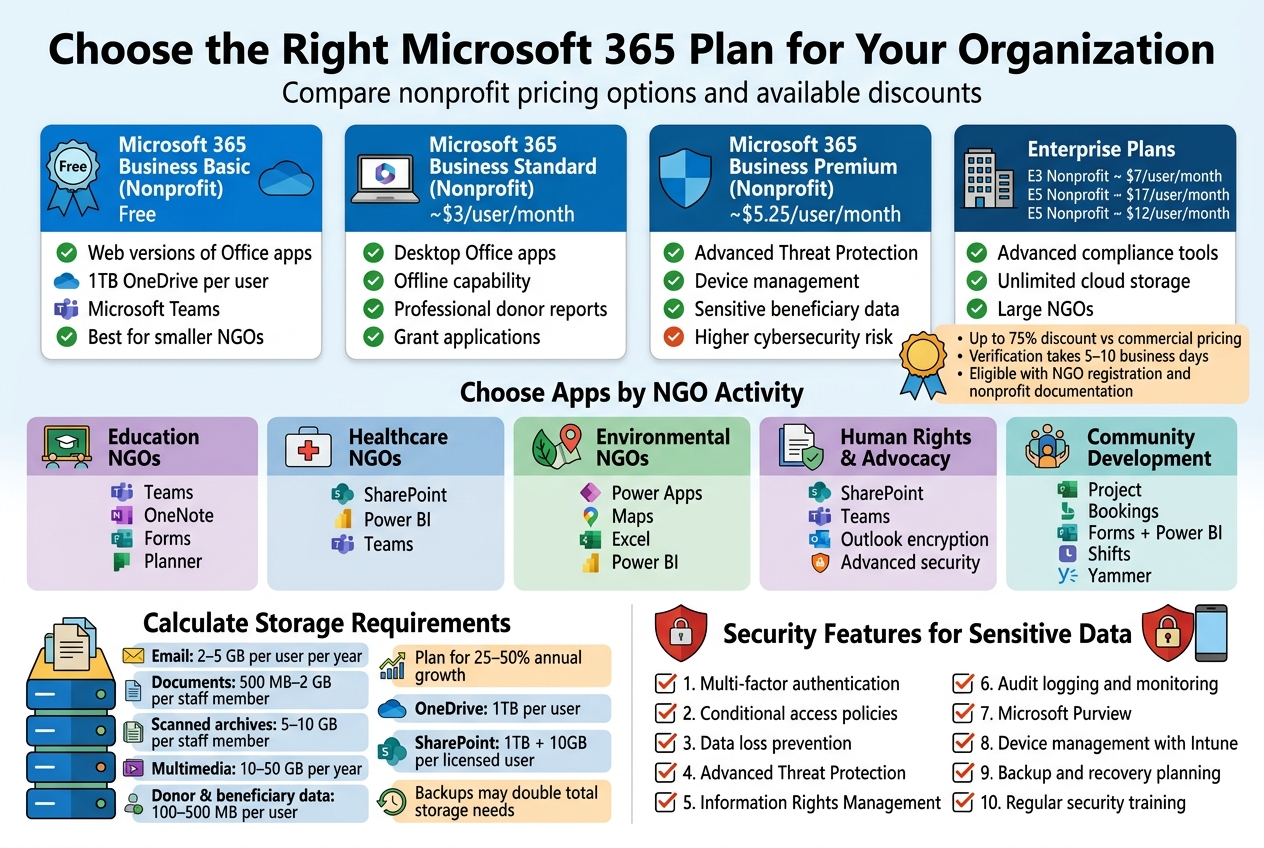
Compare nonprofit pricing options and available discounts
Microsoft understands the unique financial challenges NGOs face, which is why they offer substantial discounts through their Microsoft 365 Nonprofit program. These discounts can save your Ugandan NGO up to 75% compared to commercial pricing, making enterprise-grade technology accessible for organizations with limited budgets.
To qualify for nonprofit pricing, your NGO must be recognized as a charitable organization by the Uganda Registration Services Bureau or hold valid registration with the National Bureau for NGOs. You’ll need to provide documentation proving your nonprofit status, including your certificate of incorporation and tax-exempt status. The verification process typically takes 5-10 business days, so plan accordingly when budgeting for your migration timeline.
Microsoft 365 Business Basic (Nonprofit) comes free for qualifying organizations and includes web-based versions of Office apps, 1TB of OneDrive storage per user, and Microsoft Teams for communication. This plan works well for smaller NGOs with basic collaboration needs and limited technical requirements.
Microsoft 365 Business Standard (Nonprofit) costs approximately $3 per user per month after the nonprofit discount. This plan adds desktop versions of Office applications, which many NGOs find essential for creating professional donor reports and grant applications. The offline capability proves particularly valuable in areas where internet connectivity might be unreliable.
Microsoft 365 Business Premium (Nonprofit) runs about $5.25 per user per month and includes advanced security features like Advanced Threat Protection and device management capabilities. For NGOs handling sensitive beneficiary data or operating in areas with higher cybersecurity risks, this plan provides essential protection layers.
Enterprise plans offer additional features like advanced compliance tools and unlimited cloud storage. Microsoft 365 E3 Nonprofit costs around $7 per user monthly, while E5 Nonprofit reaches approximately $12 per user monthly. These plans suit larger NGOs with complex regulatory requirements or extensive data management needs.
Don’t overlook the Power Platform add-ons available at nonprofit pricing. Power BI Pro costs about $2.50 per user monthly for nonprofits and transforms how you visualize program impact data for donors and stakeholders. Power Apps and Power Automate can streamline your operational workflows without requiring extensive technical expertise.
Many NGOs also benefit from Azure credits available through the Microsoft Azure Sponsorship program. This separate program provides up to $3,500 in monthly Azure credits for qualifying nonprofits, perfect for hosting websites, databases, or custom applications supporting your mission.
Determine essential applications based on your NGO’s activities
Your NGO’s specific activities should drive which Microsoft 365 applications you prioritize during migration and staff training. Different types of NGOs have varying collaboration patterns and technology needs that directly impact which features provide the most value.
Education-focused NGOs typically benefit most from Microsoft Teams for virtual classroom delivery and student engagement. OneNote becomes invaluable for lesson planning and sharing educational resources among teaching staff. Forms helps create student assessments and feedback surveys, while Planner organizes curriculum development projects across multiple team members.
Healthcare and medical NGOs often prioritize SharePoint for managing patient protocols and medical procedures documentation. Power BI helps track health outcomes and program effectiveness metrics required by funding organizations. Teams provides HIPAA-compliant communication channels when configured properly, essential for discussing sensitive patient information.
Environmental and conservation organizations frequently leverage Power Apps to create field data collection tools for research activities. Maps integration within various Microsoft 365 apps supports location-based project tracking. Excel remains crucial for analyzing environmental data sets, while Power BI creates compelling visualizations for grant applications and impact reports.
Human rights and advocacy NGOs typically need robust document management through SharePoint and secure communication via Teams. The advanced security features in higher-tier plans become essential when protecting sensitive information about vulnerable populations. Outlook’s encryption capabilities help secure correspondence with international partners and government contacts.
Community development organizations often use Project to manage multiple concurrent initiatives across different geographic areas. Bookings helps coordinate community meetings and volunteer activities. The integration between Forms and Power BI creates powerful community needs assessment tools and impact measurement dashboards.
Consider your volunteer management needs when selecting applications. If your NGO relies heavily on volunteers, Shifts can help coordinate volunteer schedules, while Yammer creates community spaces for volunteer engagement and communication.
Think about your reporting requirements to donors and government agencies. NGOs with complex reporting obligations benefit from the business intelligence capabilities in Power BI and the advanced data analysis features in Excel. Organizations with simpler reporting needs might find the basic charts and graphs in PowerPoint sufficient for their donor presentations.
Calculate storage requirements for donor records and project files
Accurate storage planning prevents costly overages and ensures your NGO has room to grow without constantly managing capacity constraints. Most Ugandan NGOs underestimate their storage needs, particularly when accounting for multimedia content like photos from field programs and video testimonials.
Start by conducting a thorough audit of your current data storage across all systems. Include email archives, financial records, donor databases, program documentation, photos, videos, and any other digital assets your organization maintains. Many NGOs discover they have significantly more data scattered across personal devices and local servers than initially estimated.
Email storage typically represents a significant portion of your overall needs. Active email users in NGOs often accumulate 2-5 GB of email data annually, including attachments from donor communications and project reports. If you’re migrating from Gmail or another system, export your current mailbox sizes to establish baseline requirements.
Document storage varies dramatically based on your NGO’s documentation practices. Organizations maintaining digital-only records typically need 500MB to 2GB per staff member for program documents, reports, and administrative files. NGOs that scan physical documents for digital archives may require 5-10 GB per staff member or more, depending on scanning quality and retention policies.
Multimedia storage often surprises NGOs during migration planning. High-quality photos from field programs typically consume 5-15 MB each, while professional video content can require several hundred megabytes per minute. NGOs using multimedia extensively for fundraising and awareness campaigns should budget 10-50 GB annually for new content creation.
Donor and beneficiary data requires careful storage planning due to privacy regulations and backup requirements. Customer relationship management data, financial records, and program participant information typically need 100-500 MB per user, depending on the detail level and retention requirements.
Consider your growth trajectory when calculating storage needs. Plan for 25-50% annual growth in data storage to account for program expansion and increased digital documentation. NGOs experiencing rapid growth might need to plan for 100% annual increases in storage requirements.
OneDrive provides 1TB per user in most Microsoft 365 plans, which suits individual storage needs for most NGO staff members. SharePoint storage allocation depends on your specific plan but typically starts at 1TB plus 10GB per licensed user. Organizations with extensive multimedia libraries or long-term document retention requirements might need additional SharePoint storage.
Backup considerations also impact storage planning. While Microsoft provides data protection, many NGOs implement additional backup strategies for critical donor and program data. Cloud-to-cloud backup solutions typically require storage equal to your active data footprint, effectively doubling your total storage needs.
Select security features appropriate for sensitive beneficiary data
NGOs handle incredibly sensitive information about vulnerable populations, donors, and program participants, making robust security measures non-negotiable rather than optional features. The wrong security configuration can lead to devastating data breaches that damage beneficiary trust and jeopardize funding relationships.
Multi-factor authentication (MFA) should be mandatory for all users accessing NGO systems. This single security measure prevents the vast majority of account compromises, even when passwords become known to malicious actors. Configure MFA to require smartphone app verification rather than SMS when possible, as SMS-based authentication faces increasing security vulnerabilities.
Conditional access policies allow you to enforce security requirements based on user location, device, and risk level. For NGOs with staff working in various locations across Uganda and internationally, conditional access can require additional authentication when users log in from new countries or unfamiliar devices. This flexibility balances security needs with operational requirements for field staff.
Data loss prevention (DLP) policies help prevent accidental sharing of sensitive beneficiary information. Configure DLP to detect and block emails containing donor social security numbers, beneficiary medical information, or financial account details. These policies can automatically encrypt sensitive emails or prevent sharing sensitive documents outside your organization.
Advanced Threat Protection provides essential defense against sophisticated phishing attacks targeting NGO staff. Attackers often research NGO personnel and create convincing phishing emails appearing to come from donors, government officials, or partner organizations. ATP’s safe attachments and safe links features provide additional security layers for email communication.
Information Rights Management (IRM) helps protect sensitive documents even after they’re shared. Apply IRM policies to donor lists, beneficiary records, and strategic planning documents to prevent unauthorized copying, printing, or forwarding. These protections persist even if documents are downloaded or shared outside your organization.
Audit logging and monitoring capabilities help you track access to sensitive data and identify potential security incidents. Enable detailed logging for SharePoint sites containing beneficiary data and OneDrive folders with donor information. Regular audit reviews can reveal unusual access patterns that might indicate compromised accounts or inappropriate data access.
Consider Microsoft Purview for organizations handling extensive personal data about beneficiaries. This compliance solution helps automate data classification, apply appropriate protection labels, and maintain detailed records for regulatory compliance. NGOs working across multiple countries with different privacy regulations find Purview particularly valuable for managing complex compliance requirements.
Device management through Microsoft Intune ensures that smartphones and tablets accessing NGO data meet minimum security standards. Configure policies requiring device encryption, screen locks, and automatic updates. For NGOs providing devices to field staff, remote wipe capabilities protect data if devices are lost or stolen in remote areas.
Backup and recovery planning must account for both technical failures and security incidents. While Microsoft provides data protection, additional backup strategies help protect against ransomware attacks and accidental deletions. Consider cloud-to-cloud backup solutions that maintain separate copies of critical NGO data outside your primary Microsoft 365 environment.
Regular security training for staff members creates the most effective defense against social engineering attacks. NGO staff often face sophisticated attacks leveraging knowledge of your programs and beneficiaries. Monthly security awareness training helps staff recognize and report suspicious emails, phone calls, and other potential security threats.
Prepare Your Organization for Seamless Migration
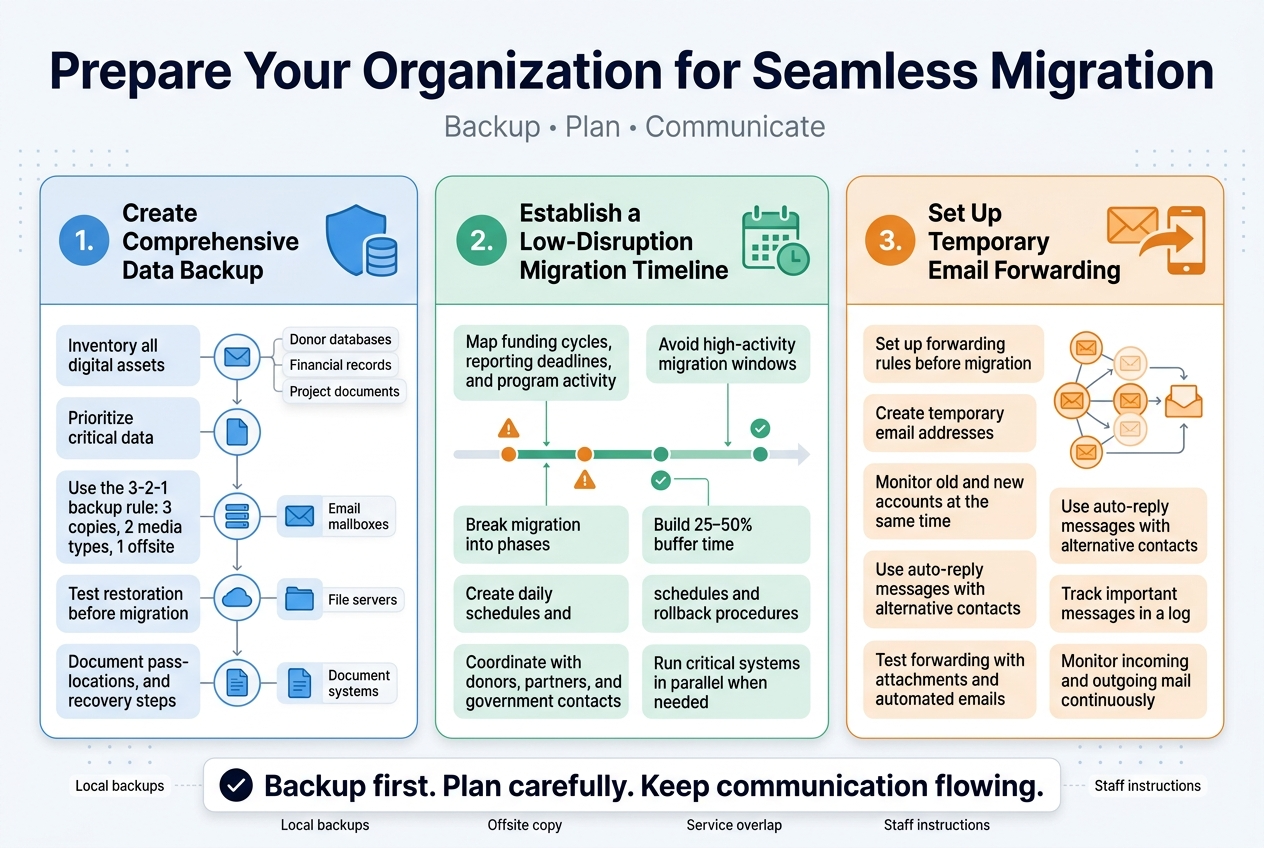
Create Comprehensive Data Backup Before Starting Migration
Your organization’s data represents years of hard work, relationships, and institutional knowledge that cannot be replaced. Before you begin any migration process, establishing multiple layers of backup protection becomes your most critical safety net. Think of this as an insurance policy that costs relatively little to implement but could save your NGO from catastrophic data loss.
Start by conducting a complete inventory of all your organization’s digital assets. This goes beyond just emails and documents stored on individual computers. Map out every database containing donor information, financial records, project documentation, beneficiary data, compliance reports, and any specialized software your NGO uses for program management or reporting. Many organizations discover forgotten repositories of critical information during this process, including shared drives that haven’t been properly maintained or legacy systems that still contain valuable historical data.
Create a priority matrix that categorizes your data based on criticality and replacement difficulty. Donor databases, financial records, and project documentation typically fall into the highest priority category, while general administrative documents and older archived materials might rank lower. This prioritization helps you allocate backup resources effectively and ensures the most important data receives multiple protection layers.
For email systems, export all mailboxes to PST files using your current email client’s built-in tools. Don’t rely on a single export – create multiple copies and verify each one opens correctly before proceeding. Test these backups by opening them on different computers to ensure file integrity. Remember that email data often contains embedded attachments and formatting that could be lost if not properly preserved during the backup process.
File servers and shared network drives require special attention during backup. Use professional backup software that maintains file permissions, creation dates, and folder structures. Windows built-in backup tools or third-party solutions like Acronis or Veeam can create complete system images that capture not just files but also system configurations and installed applications. Schedule these backups to run during off-hours to minimize impact on daily operations.
Document management systems present unique challenges since they often use proprietary database formats. Contact your current system vendor for specific export procedures, and request data in multiple formats if possible. Some organizations maintain dual systems temporarily during migration to ensure critical documents remain accessible throughout the transition.
Consider the 3-2-1 backup rule: maintain three copies of critical data, store them on two different types of media, and keep one copy offsite. For Ugandan NGOs, offsite storage might mean cloud services like Google Drive or Dropbox for temporary backup storage, or physical drives stored at a different location. Given potential internet connectivity challenges, having local physical backups remains essential.
Test your backup restoration process before starting migration. Many organizations discover their backups are corrupted or incomplete only when they need them most. Randomly select files from different backup sets and verify they can be restored successfully. This testing process often reveals gaps in your backup strategy that can be addressed before migration begins.
Create detailed documentation of your backup procedures, including file locations, passwords, and restoration steps. Multiple team members should understand how to access and restore data if the primary IT person becomes unavailable during migration. This documentation proves invaluable when troubleshooting issues or training new staff members.
Establish Migration Timeline With Minimal Disruption to Operations
Planning your migration timeline requires balancing thoroughness with operational continuity. Your NGO likely has funding cycles, reporting deadlines, and program activities that cannot be interrupted, so the migration schedule must work around these constraints rather than forcing your organization to adapt to an arbitrary timeline.
Begin by mapping your organization’s operational calendar for the next six months. Identify periods of high activity when system downtime would be particularly disruptive – grant application deadlines, donor reporting periods, major fundraising campaigns, or intensive program delivery phases. These become no-migration zones in your schedule. Conversely, identify slower periods when staff might be more available for training and when temporary system limitations would cause minimal disruption.
Break the migration into manageable phases rather than attempting a complete transition overnight. A phased approach allows you to address problems as they arise without affecting your entire operation simultaneously. Start with non-critical systems or a small group of power users who can help identify issues before rolling out changes organization-wide.
Consider beginning with file migration during a weekend or holiday period when fewer staff members need access to documents. Email migration typically requires more coordination since communication must remain functional throughout the process. Plan email transitions during periods when external communication is less critical, and ensure key staff members have alternative communication methods available.
Build buffer time into every phase of your timeline. Technology migrations rarely proceed exactly as planned, and discovering unexpected compatibility issues or data formatting problems is normal. Allow 25-50% extra time beyond your initial estimates for each major migration component. This buffer prevents cascade delays that could push critical migration activities into busy operational periods.
Create detailed daily schedules for migration weeks that specify exactly which systems will be affected and when. Share these schedules with all staff members well in advance, highlighting when they should avoid certain activities or might experience temporary service interruptions. Clear communication prevents frustration and helps staff plan their work around migration activities.
Establish rollback procedures for each migration phase. If problems arise that cannot be quickly resolved, you need predetermined steps to restore previous functionality while you address issues. Document these rollback procedures in detail and ensure multiple team members understand how to execute them. Practice these procedures during your testing phase so they can be implemented quickly if needed.
Coordinate with external partners and stakeholders who might be affected by temporary service disruptions. Inform donors, partner organizations, and government contacts about planned maintenance windows when your email or file sharing might be temporarily unavailable. This proactive communication demonstrates professionalism and prevents misunderstandings if they cannot reach you during transition periods.
Consider running parallel systems temporarily for critical functions. This might mean maintaining your old email system while testing the new one, or keeping backup access to important files through multiple channels. While this creates additional complexity, it provides security knowing that essential operations can continue if migration issues arise.
Set Up Temporary Email Forwarding During Transition Period
Email communication forms the backbone of most NGO operations, connecting you with donors, beneficiaries, government partners, and international collaborators. Maintaining uninterrupted email service during migration requires careful planning and multiple backup strategies to ensure no critical communications are lost.
Configure email forwarding rules in your current system before beginning migration activities. Most email servers allow you to create forwarding rules that automatically redirect incoming messages to alternative addresses. Set up forwarding for key staff members to personal email accounts or temporary addresses that will remain accessible throughout the migration. Test these forwarding rules thoroughly by sending messages from external accounts and verifying they arrive at the designated forwarding addresses.
Establish temporary email addresses using free services like Gmail or Yahoo Mail for critical functions during transition. Create addresses that clearly identify their temporary nature, such as , to avoid confusion once the migration completes. Share these temporary addresses only with essential contacts who need to reach you during the migration window. Document which staff members are using which temporary addresses to prevent communication confusion.
Configure email clients on staff computers to check multiple email accounts simultaneously during transition. Most modern email clients can manage several accounts, allowing staff to monitor both old and new email systems without switching between different applications. This dual monitoring ensures nothing falls through the cracks while systems are being migrated and tested.
Set up auto-reply messages in your current email system informing contacts about the transition process. These messages should explain that you’re upgrading your email system, provide alternative contact methods if needed, and give realistic timeframes for when normal service will resume. Professional auto-reply messages demonstrate that temporary communication delays are planned rather than resulting from technical problems.
Create a communication hub using tools like WhatsApp Business or Microsoft Teams to maintain internal coordination during migration. Staff members can share urgent information and coordinate migration activities even if email systems are temporarily unavailable. This internal communication channel prevents migration work from stalling due to coordination difficulties.
Plan for mobile email access during transition periods. Many staff members rely on smartphones for email access, especially when traveling to project sites or meeting with stakeholders outside the office. Configure mobile devices to access both old and new email systems during transition, and provide clear instructions for switching between them as migration phases complete.
Implement a message logging system to track important communications during transition. Designate specific staff members to monitor temporary email accounts and maintain logs of critical incoming messages. This logging ensures important communications are documented and can be properly filed in the new system once migration completes.
Test email forwarding with different types of messages including those with attachments, high-priority flags, and messages from automated systems like banking notifications or government portals. Some forwarding systems handle these special message types differently, and discovering problems during testing prevents important communications from being lost during actual migration.
Coordinate with your internet service provider or email hosting company to extend service overlap periods. Many providers can maintain your old email system for several weeks while the new system becomes fully operational. This extended overlap provides additional security and allows time to verify that all email data has been properly transferred before completely shutting down the old system.
Prepare detailed instructions for staff members explaining how to access email during each phase of migration. Include screenshots and step-by-step procedures for checking multiple email accounts, understanding which system to use for sending responses, and what to do if they encounter problems accessing email. Clear instructions reduce support requests and help staff remain productive during transition periods.
Monitor email flow continuously during migration to identify and address problems quickly. Set up monitoring for both incoming and outgoing email to ensure messages are flowing correctly through forwarding systems and that staff can send messages from temporary accounts when needed. Quick problem identification prevents small issues from becoming major communication disruptions that could affect your organization’s relationships with key stakeholders.
Execute Domain Setup and User Account Configuration
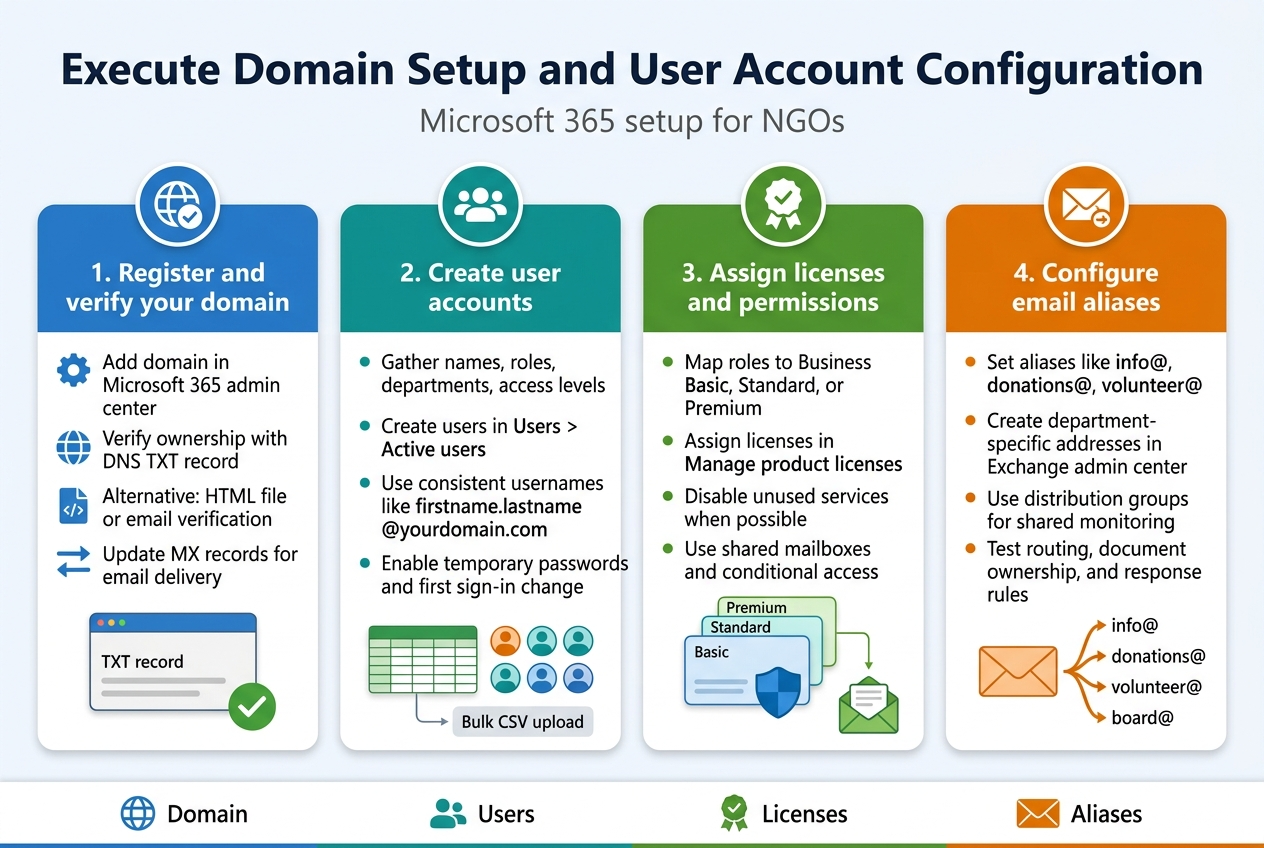
Register and verify your NGO’s domain name with Microsoft
Getting your domain set up with Microsoft 365 marks a major milestone in your migration journey. Your domain name becomes the foundation for all your organization’s digital communications and establishes your professional online presence.
Start by accessing the Microsoft 365 admin center with your administrator credentials. Navigate to the Setup section and look for the “Domains” option. Click “Add domain” and enter your NGO’s domain name exactly as it appears. Microsoft will immediately check if the domain is available for verification.
The verification process involves proving you own the domain. Microsoft provides several methods to accomplish this. The DNS record method is typically the most straightforward for NGOs. You’ll receive a unique TXT record that needs to be added to your domain’s DNS settings. Log into your domain registrar’s control panel – this might be Namecheap, GoDaddy, or your local Ugandan hosting provider.
Navigate to the DNS management section and create a new TXT record. Copy the exact text string provided by Microsoft into the value field. Leave the host field blank or enter “@” depending on your registrar’s requirements. Save these changes and wait for propagation, which usually takes 15-30 minutes but can occasionally stretch to several hours.
Return to the Microsoft 365 admin center and click “Verify.” The system will automatically check for the TXT record. Once verification succeeds, you’ll see a green checkmark indicating your domain is ready for configuration.
Some NGOs prefer using the HTML file method for verification. This involves uploading a specific HTML file to your website’s root directory. Download the file from Microsoft, upload it via FTP or your hosting control panel, and ensure it’s accessible at yourdomain.com/filename.html. This method works well if your IT volunteer has easy access to your website files.
Email verification represents another option, though it’s less commonly used. Microsoft sends a verification email to or . Check these inboxes and click the verification link to complete the process.
After successful verification, Microsoft will prompt you to set up DNS records for email routing. These MX records tell the internet where to deliver emails sent to your domain. Replace your existing MX records with Microsoft’s provided values, typically pointing to yourdomain-com.mail.protection.outlook.com with a priority of 0.
Create user accounts for all staff members and volunteers
Building your user directory requires careful planning and attention to detail. Every person who needs access to your NGO’s Microsoft 365 resources requires their own unique user account.
Begin by gathering comprehensive information about your staff and volunteers. Create a spreadsheet listing each person’s full name, preferred email address, job title, department, and required access level. Include temporary staff, consultants, and regular volunteers who need email access or document collaboration capabilities.
Access the Microsoft 365 admin center and navigate to Users > Active users. Click “Add a user” to start the account creation process. Enter the person’s first and last name in the designated fields. The display name automatically populates but can be customized if needed.
Choose the username carefully, as this becomes their email address. Many NGOs adopt naming conventions like or first initial plus last name. Maintain consistency across all accounts to ensure professional appearance and easy memorization.
Create secure temporary passwords for each account. Microsoft 365 includes password generation tools that create strong, random passwords. Note these passwords in your secure spreadsheet for distribution during the onboarding process. Enable the option requiring users to change passwords at first sign-in to enhance security.
Bulk user creation saves significant time for larger NGOs. Download Microsoft’s CSV template from the admin center and populate it with your staff information. The template includes columns for names, usernames, passwords, and license assignments. Upload the completed file to create multiple accounts simultaneously.
Set up security groups during account creation to simplify ongoing management. Create groups for different departments, access levels, or project teams. Add users to appropriate groups as you create their accounts, establishing the foundation for future permission assignments.
Consider guest user accounts for external partners, donors, or board members who need occasional access to specific resources. Guest accounts provide limited access without consuming full licenses, making them cost-effective for temporary or restricted use.
Document each account’s details in your secure password management system. Include recovery information, assigned licenses, and group memberships. This documentation proves invaluable during troubleshooting or when team members leave the organization.
Assign appropriate licenses and permissions based on roles
License assignment directly impacts what features each user can access and represents a significant portion of your Microsoft 365 investment. Strategic license allocation ensures everyone has necessary tools while controlling costs.
Microsoft 365 offers several license types suited for NGO needs. Business Basic provides web-based Office apps, email, and cloud storage at the lowest cost point. Business Standard adds desktop Office applications for users who need full-featured Word, Excel, and PowerPoint. Business Premium includes advanced security features and device management capabilities.
Create a license assignment matrix mapping roles to required features. Executive directors typically need Business Premium for advanced security and mobile device management. Program staff might require Business Standard for desktop applications and extensive document creation. Administrative assistants and part-time volunteers often work effectively with Business Basic licenses.
Navigate to the Microsoft 365 admin center and select Users > Active users. Choose individual users or select multiple users for bulk license assignment. Click “Manage product licenses” to view available options. Enable the appropriate license type for each user based on your predefined matrix.
Review optional service assignments within each license. Users might not need all included services, and disabling unused features can improve security and reduce complexity. For example, disable Microsoft Teams for users who won’t participate in video conferences, or remove Power Platform access for those who won’t build custom applications.
Set up license alerts to monitor usage and prevent unexpected charges. Configure notifications when your organization approaches license limits or when users remain inactive for extended periods. Regular license reviews help identify opportunities to downgrade unused premium features.
Consider shared mailbox configurations for department-specific email addresses that multiple staff members monitor. Shared mailboxes don’t require dedicated licenses, making them cost-effective for info@, donations@, or volunteer@ email addresses. Assign access permissions to relevant staff members while maintaining centralized message storage.
Implement conditional access policies to enhance security for premium license holders. These policies can require multi-factor authentication for admin accounts, restrict access from unfamiliar devices, or block downloads from unmanaged computers. Configure policies gradually to avoid disrupting daily operations.
Configure email aliases for department-specific communications
Email aliases create professional communication channels without requiring additional licenses or separate accounts. These aliases route messages to existing user accounts while maintaining organized communication flows.
Start by identifying communication patterns within your NGO. Most organizations need aliases for general inquiries (info@), donations (donations@ or giving@), volunteer coordination (volunteer@), and program-specific contacts. Board communications might require board@ or governance@ aliases.
Access the Exchange admin center through your Microsoft 365 admin center. Navigate to Recipients > Mailboxes and select the user account that should receive messages sent to the alias. Click “Manage email address types” and select “Add an email address.”
Choose “Email address” as the type and enter your desired alias. The domain dropdown automatically shows your verified domain. Create descriptive aliases that clearly indicate their purpose, such as for program-related inquiries or for press communications.
Set up distribution groups for aliases that multiple team members should monitor. Create groups like that automatically forward messages to all relevant staff members. This approach ensures important communications reach multiple people while maintaining backup coverage during staff absences.
Configure mail flow rules to enhance alias functionality. These rules can automatically categorize incoming messages, forward specific types of inquiries to appropriate departments, or add descriptive subject line prefixes. For example, messages to donations@ might automatically receive a “DONATION:” prefix for easy identification.
Test each alias thoroughly before announcing them publicly. Send test messages from external email accounts to verify proper routing and delivery. Check that automatic replies work correctly and that all intended recipients receive the messages.
Document your alias structure in a centralized location accessible to all relevant staff. Include information about monitoring responsibilities, response time expectations, and escalation procedures for each alias. Update this documentation whenever you modify alias configurations or change monitoring assignments.
Establish clear guidelines for alias usage and response protocols. Define who should respond to different types of inquiries, set response time expectations, and create template responses for common questions. These protocols ensure consistent, professional communication regardless of which team member handles the response.
Monitor alias usage regularly to identify patterns and optimization opportunities. Track response times, message volumes, and common inquiry types. This data helps refine your communication strategies and might reveal needs for additional aliases or procedural improvements.
Migrate Email Data and Ensure Communication Continuity
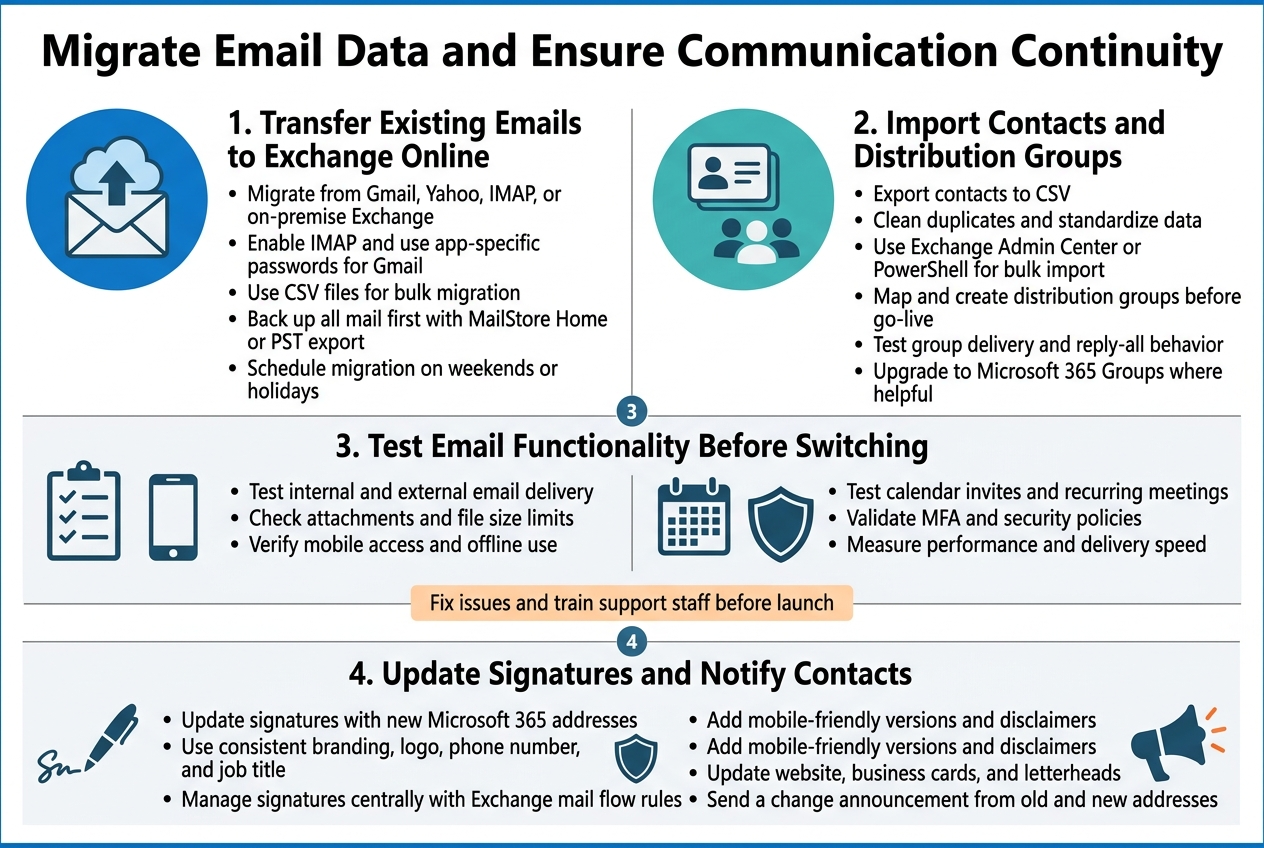
Transfer existing emails from old system to Exchange Online
Moving your email history to Exchange Online requires careful planning to avoid losing years of important communications. Most Ugandan NGOs operate with systems like Gmail, Yahoo, or on-premise Exchange servers, and each requires a different migration approach.
For Gmail migrations, Microsoft provides the Exchange Admin Center with built-in Gmail migration tools. Start by enabling IMAP access in your Gmail admin console and create an app-specific password for each user account. The migration process can handle up to 50,000 emails per user, which covers most NGO requirements. Create a CSV file containing usernames, email addresses, and passwords for bulk processing.
When migrating from Yahoo or other IMAP-based systems, use the Internet Message Access Protocol (IMAP) migration method. This approach works for smaller organizations with under 50 users and less than 50GB of data per mailbox. The process typically takes 24-72 hours depending on your internet connection speed and data volume.
Organizations with on-premise Exchange servers have more sophisticated options. The hybrid migration approach allows you to maintain both systems temporarily while gradually moving users. This method proves especially valuable for NGOs with field offices across Uganda where internet connectivity might be inconsistent.
Before starting any migration, create a complete backup of your existing email system. Use tools like MailStore Home for individual accounts or professional backup solutions for organization-wide protection. Export emails to PST files as an additional safety measure.
Plan your migration timing carefully. Many Ugandan NGOs find success migrating during weekends or holiday periods when email traffic is minimal. Consider your project cycles and donor reporting deadlines to avoid disrupting critical communications.
Import contact lists and distribution groups
Contact migration often gets overlooked but represents one of the most valuable aspects of your email system. Your NGO’s contact database contains years of relationship building with donors, beneficiaries, government officials, and partner organizations.
Export existing contacts from your current system in CSV format. Most email platforms support CSV export through their admin panels or user interfaces. Clean up the data before importing – remove duplicate entries, standardize phone number formats, and verify email addresses are still active.
Microsoft 365 accepts contact imports through several methods. The Exchange Admin Center provides a straightforward upload feature for CSV files. For larger contact lists exceeding 1,000 entries, use PowerShell commands for bulk importing. This approach also allows for advanced field mapping and data validation.
Distribution groups require special attention during migration. Map out your current group structure before starting – document which groups exist, their membership, and their purposes. Many NGOs use distribution lists for project teams, regional offices, donor communications, and volunteer coordination.
Create new distribution groups in Microsoft 365 before importing members. Use meaningful names that reflect your organizational structure. For example, “Uganda-North-Field-Team” provides more clarity than generic names like “Group1.” Set appropriate permissions for group management – determine who can send messages to each group and who can modify membership.
Test distribution groups thoroughly before going live. Send test messages to each group and verify all members receive them correctly. Check that reply-all functionality works as expected and that external contacts can reach appropriate groups when necessary.
Consider upgrading traditional distribution groups to Microsoft 365 Groups where appropriate. These modern groups include shared mailboxes, calendars, file storage, and collaboration tools that can enhance your NGO’s teamwork capabilities.
Test email functionality before switching primary systems
Email testing prevents embarrassing outages and communication breakdowns during your go-live period. Create a comprehensive testing checklist that covers all aspects of your email usage patterns.
Start with basic functionality testing. Send emails between migrated accounts, test external email delivery, and verify replies work correctly. Check that attachments can be sent and received without file corruption or size limit issues. Microsoft 365 supports 25MB attachments by default, which might differ from your previous system limits.
Test mobile access extensively since many NGO staff work in the field with smartphones and tablets. Install Outlook mobile apps on different devices and operating systems. Verify that push notifications work correctly for urgent communications. Test offline access functionality for areas with poor connectivity – a common challenge for NGOs operating in rural Uganda.
Calendar integration requires thorough testing. Create test meetings, send invitations, and verify that attendees can accept or decline properly. Check that recurring meetings migrate correctly and that room bookings (if applicable) transfer properly. Test calendar sharing permissions to ensure project coordinators can view team schedules.
Security features need validation. Test multi-factor authentication setup and verify that security policies apply correctly to migrated accounts. Check that data loss prevention rules work as configured and that encrypted emails can be sent and received when required.
Document any issues discovered during testing and create workarounds before the full migration. Train your IT support person or designated administrator on common troubleshooting steps. Create a quick reference guide for staff addressing frequently encountered problems.
Performance testing helps identify potential bottlenecks. Measure email delivery times during peak usage periods and compare them to your previous system. Monitor server response times when accessing large mailboxes or searching through extensive email archives.
Update email signatures with new Microsoft 365 addresses
Email signatures serve as digital business cards for your NGO and require updating to reflect your Microsoft 365 migration. Professional signatures enhance credibility with donors, government partners, and international collaborators.
Design a standardized signature template that reflects your organization’s branding. Include essential information like full names, job titles, phone numbers, and your new Microsoft 365 email addresses. Add your NGO’s logo and maintain consistent formatting across all staff members.
Most NGOs benefit from including additional elements in signatures. Consider adding your registration number with the NGO Bureau, which builds trust with government officials and donors. Include links to your website and social media profiles to expand your digital presence. Add a brief mission statement or current project highlight to increase awareness of your work.
Create signature templates for different staff levels. Executive directors might include different information than field coordinators or administrative staff. Volunteers and consultants may need modified versions that clearly identify their roles and relationship to your organization.
Microsoft 365 provides several options for managing email signatures. Individual users can create personal signatures through Outlook settings, but this approach lacks consistency. Organization-wide signature management requires Exchange Online rules or third-party signature management tools.
For centralized control, use Exchange mail flow rules to append signatures automatically. This method ensures consistency and allows for quick updates when staff changes occur or contact information needs modification. Configure rules to apply different signatures based on sender attributes like department or location.
Mobile signature management requires separate attention. Outlook mobile apps handle signatures differently than desktop versions. Create simplified mobile signatures that display properly on small screens while maintaining professional appearance.
Consider including disclaimers in your signatures to protect your organization. Add statements about confidentiality for sensitive communications or disclaimers about the sender’s authority to make commitments on behalf of the NGO. These legal protections prove especially important when communicating with donors or government agencies.
Test signature display across different email clients and devices. Signatures might appear differently in Outlook, Gmail, or mobile email apps. Use HTML formatting carefully to ensure compatibility while maintaining visual appeal. Avoid complex formatting that might break when viewed on different platforms.
Update your website and printed materials to reflect email address changes. Replace old email addresses on business cards, letterheads, and marketing materials. Update contact forms on your website to use new Microsoft 365 addresses. Inform regular contacts about the change through a brief announcement email sent from both old and new addresses.
Transfer Files and Establish Collaborative Workspaces
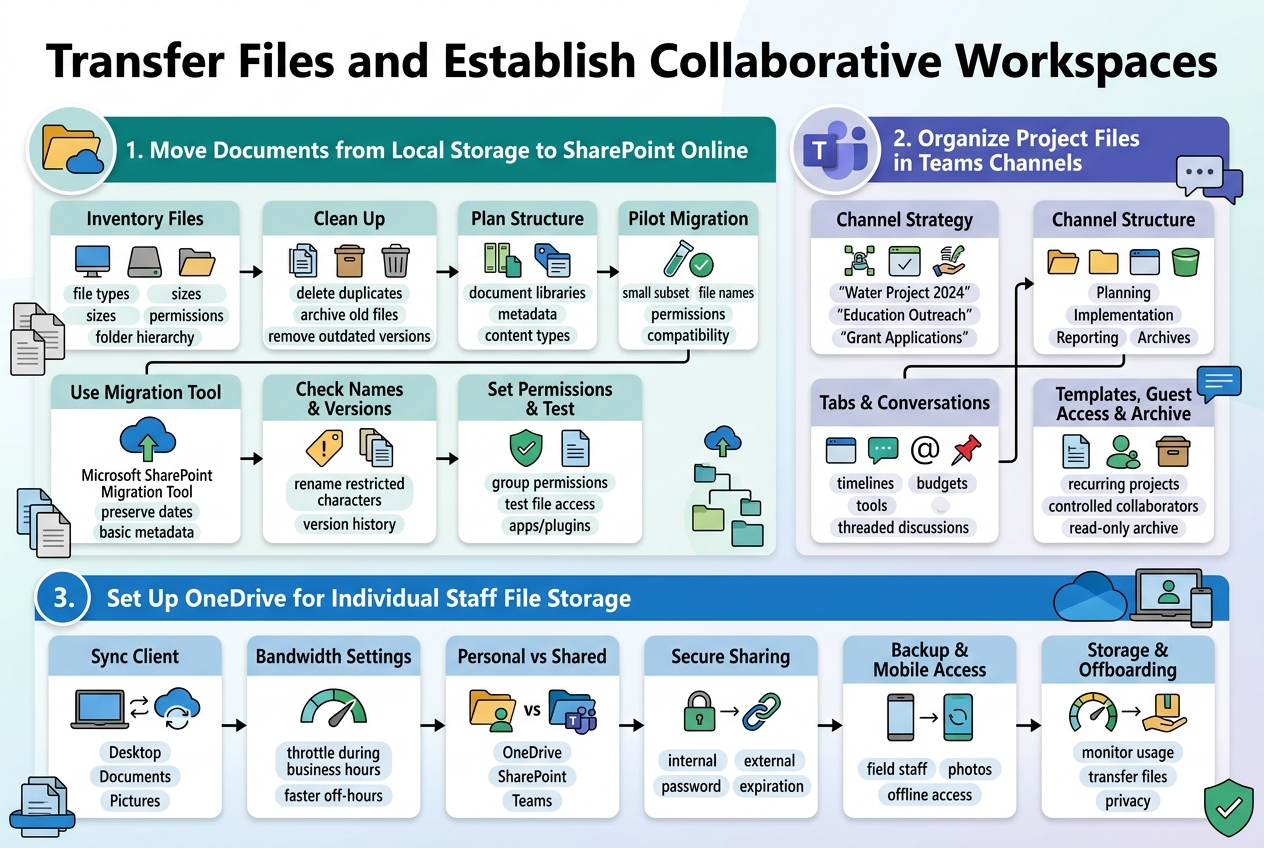
Move documents from local storage to SharePoint Online
SharePoint Online becomes your central hub for document management once you’ve made the switch to Microsoft 365. The transition from local file storage to SharePoint requires careful planning and execution to make sure nothing gets lost in the shuffle.
Before moving any files, take time to analyze your current document structure. Most NGOs have accumulated years of documents scattered across different computers, external drives, and network folders. Create a comprehensive inventory that includes document types, file sizes, access permissions, and current folder hierarchies. This inventory becomes your roadmap for the migration process.
Start by cleaning up your existing files before the move. Delete duplicate documents, archive old files that need retention but aren’t actively used, and remove outdated versions that might cause confusion. This cleaning process reduces migration time and creates a fresh start in SharePoint.
Consider the folder structure carefully when planning your SharePoint document libraries. Unlike traditional file systems, SharePoint offers metadata and content types that can replace complex folder hierarchies. Design a structure that reflects how your team actually works rather than simply recreating your existing folder system.
Create a pilot migration with a small subset of documents first. Choose files from different departments and varying file types to test the migration process. This pilot helps identify potential issues like file naming conflicts, permission problems, or compatibility concerns before migrating your entire document collection.
Use the SharePoint Migration Tool provided by Microsoft for bulk transfers. This tool handles most file types and preserves creation dates, modification dates, and basic metadata. For organizations with complex permission structures, consider using third-party migration tools that offer more granular control over user access during the transfer.
Pay special attention to file naming conventions during migration. SharePoint has specific restrictions on file names, including prohibited characters like #, %, &, *, :, <, >, ?, , {, |, and }. Files with these characters need renaming before migration. Create a standardized naming convention that works across all Microsoft 365 applications.
Version history becomes particularly important during migration. SharePoint automatically tracks document versions, but you might want to preserve version history from your current system. Document this process clearly and communicate version control practices to your team.
Set up proper permissions before users start accessing migrated documents. SharePoint offers inheritance-based permissions that can simplify management compared to traditional file sharing. Create security groups that align with your organizational structure and assign permissions to groups rather than individual users.
Test document functionality after migration. Some file types might require specific applications or plugins to open correctly. Office documents typically transition seamlessly, but specialized software files might need additional configuration.
Organize project files in Teams channels for better collaboration
Microsoft Teams channels transform how NGO projects get organized and managed. Each channel serves as a dedicated workspace where project-specific conversations, files, and tools live together in one accessible location.
Create a clear channel strategy before setting up Teams workspaces. Most successful NGOs organize channels around specific projects, programs, or functional areas rather than creating broad, catch-all spaces. For example, separate channels for “Water Project 2024,” “Education Outreach,” and “Grant Applications” work better than generic channels like “General Projects.”
Name your channels descriptively and consistently. Use naming conventions that immediately communicate the channel’s purpose. Include relevant dates, locations, or project codes that help team members quickly identify the right workspace. “WaterProject_Kampala_2024” provides more clarity than simply “Water.”
Configure each channel’s file structure thoughtfully. Teams automatically creates a SharePoint document library for each channel, but you control how folders get organized within that library. Create logical folder structures that match your project workflow stages like “Planning,” “Implementation,” “Reporting,” and “Archives.”
Take advantage of channel tabs to bring frequently used resources directly into the workspace. Add tabs for project timelines, budget spreadsheets, external websites, or specialized applications your team uses regularly. This reduces the need to switch between different applications during project work.
Set up channel notifications appropriately for different team members. Project managers might need notifications for all channel activity, while occasional contributors might prefer notifications only when directly mentioned. Configure these settings during channel setup to prevent notification overload.
Use channel conversations strategically for project communication. Pin important announcements to keep them visible, use @mentions to direct attention to specific team members, and leverage threaded conversations to keep related discussions organized. This creates a searchable project communication history.
Integrate project management tools directly into relevant channels. Microsoft Planner, Project for the Web, or third-party tools like Trello can embed directly into Teams channels. This integration keeps task management closely connected to project conversations and file sharing.
Create templates for recurring project types. Many NGOs run similar projects repeatedly – health campaigns, education workshops, or fundraising events. Develop Teams channel templates that include standard folder structures, tab configurations, and initial file sets. This accelerates new project setup while ensuring consistency.
Consider guest access for external collaborators carefully. Many NGO projects involve partners, donors, or community members who aren’t part of your organization. Teams guest access allows controlled participation without requiring full Microsoft 365 licenses, but review security implications and configure appropriate restrictions.
Archive completed project channels systematically. Teams doesn’t automatically archive old channels, so develop a process for moving completed projects to read-only status while preserving access to historical information. This keeps your active Teams environment focused and organized.
Set up OneDrive for individual staff file storage
OneDrive serves as each staff member’s personal workspace within Microsoft 365, providing secure cloud storage that synchronizes across devices while integrating seamlessly with other Microsoft applications.
Begin OneDrive deployment by installing the sync client on all staff computers. The sync client creates a local OneDrive folder that automatically synchronizes with the cloud, allowing staff to work with files even when internet connectivity is limited – a common challenge for many Ugandan NGOs operating in remote areas.
Configure sync settings appropriately for your organization’s internet infrastructure. OneDrive offers bandwidth throttling options that prevent file synchronization from consuming all available internet bandwidth during business hours. Set conservative limits during peak usage times and allow faster synchronization during off-hours.
Educate staff about OneDrive folder structure and best practices. The default OneDrive setup includes a Desktop folder, Documents folder, and Pictures folder that automatically sync. Help staff understand which files should live in OneDrive versus shared team spaces in SharePoint or Teams.
Implement a clear policy for personal versus professional file storage. OneDrive for Business provides substantial storage space, but establish guidelines about what types of files belong in organizational OneDrive accounts. Personal photos, music, or non-work documents should remain in personal cloud storage accounts.
Set up OneDrive sharing permissions carefully. Staff can share OneDrive files with internal colleagues or external partners, but configure default sharing settings to align with your organization’s security requirements. Disable external sharing if your NGO handles sensitive beneficiary data or confidential donor information.
Train staff on OneDrive’s collaborative features. Files stored in OneDrive can be co-authored in real-time using Office applications, shared through secure links with expiration dates, and protected with password requirements. These features enhance productivity while maintaining security.
Configure OneDrive backup features for staff computers. OneDrive can automatically backup Desktop, Documents, and Pictures folders from Windows computers, protecting staff work even if hardware fails. This backup capability provides additional data protection beyond traditional OneDrive file storage.
Address mobile access needs for field staff. OneDrive mobile applications allow access to files from smartphones and tablets, enabling field workers to access forms, reference materials, or upload photos from project sites. Configure mobile policies that balance accessibility with data security.
Establish OneDrive storage management practices. While Microsoft provides substantial storage quotas, monitor usage patterns and provide guidance on managing large files. Video files, high-resolution photos, and archived project materials can quickly consume storage space.
Plan for staff transitions carefully. When staff members leave your organization, their OneDrive content needs appropriate handling. Develop procedures for transferring important files to appropriate colleagues while respecting privacy and confidentiality requirements. Microsoft provides administrative tools for accessing departed employees’ OneDrive content, but use these capabilities thoughtfully and in accordance with local employment laws.
Create OneDrive usage guidelines specific to your NGO’s work environment. Include examples relevant to your organization’s activities – how field reports should be stored, where to keep beneficiary photos, how to organize grant documents, and when to use OneDrive versus shared team spaces.
Train Staff and Maximize Productivity Features
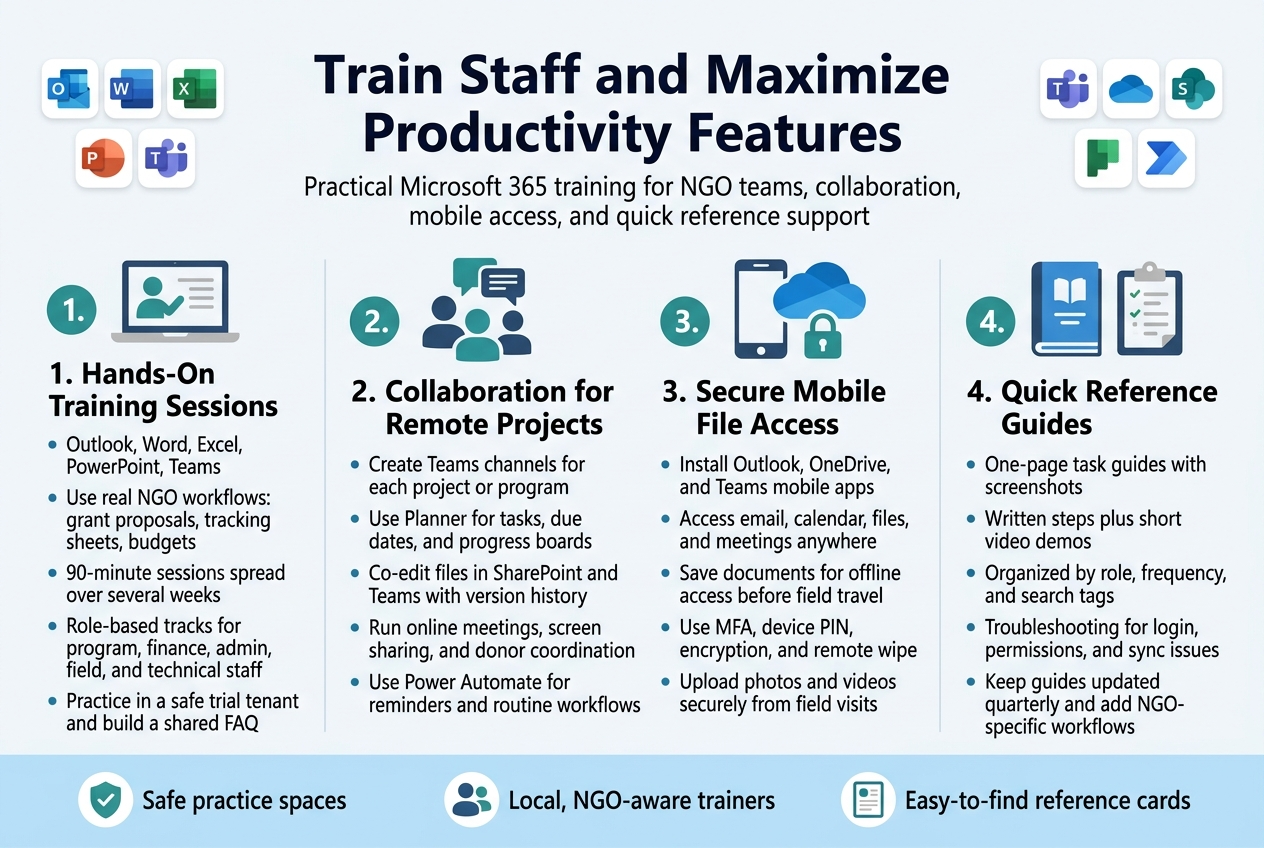
Conduct hands-on training sessions for core Microsoft 365 applications
Getting your team comfortable with Microsoft 365 requires more than just pointing them to online tutorials. Your NGO needs structured, practical training that addresses real work scenarios your staff faces daily. Start by identifying the applications your team will use most frequently – typically Outlook for email management, Word for document creation, Excel for data tracking, PowerPoint for presentations, and Teams for communication.
Design your training sessions around actual NGO workflows. Instead of teaching Word features in isolation, show staff how to create grant proposals with proper formatting, headers, and collaborative review features. When training on Excel, use examples from your organization’s beneficiary tracking sheets or budget templates. This approach helps staff connect new tools with familiar tasks, reducing resistance and increasing adoption.
Break training into digestible 90-minute sessions spread across several weeks rather than cramming everything into marathon sessions. Adult learners retain information better when they can practice between sessions and ask questions about real problems they encounter. Schedule sessions during slower periods of your project cycles when staff can dedicate full attention to learning.
Create different training tracks based on staff roles and technical comfort levels. Your program managers need different skills than your finance team. Administrative staff require proficiency in calendar management and document sharing, while field workers need mobile access skills and offline capabilities. Technical coordinators should learn advanced features like automated workflows and data analysis tools.
Consider bringing in a Microsoft certified trainer familiar with NGO environments. They understand the unique challenges nonprofits face, from limited budgets to diverse technical skill levels among staff. Local trainers familiar with Ugandan business culture can make examples more relevant and address specific concerns about data sovereignty and internet connectivity.
Set up practice environments where staff can experiment without fear of affecting live data. Microsoft provides trial tenants perfect for this purpose. Staff learn better when they can click around freely and make mistakes without consequences. Record common questions and create a FAQ document that grows throughout the training period.
Demonstrate collaboration tools for remote project management
Remote work capabilities became essential for NGOs, especially those working across multiple districts or countries. Microsoft 365’s collaboration tools transform how your team manages projects, coordinates activities, and maintains communication despite geographic barriers. Start by demonstrating Microsoft Teams as your central collaboration hub.
Show staff how to create dedicated team channels for each project or program area. A maternal health initiative gets its own channel where field officers, program managers, and partners can share updates, documents, and coordinate activities. Demonstrate how conversations stay organized by topic, making it easy to find previous discussions about specific issues or decisions.
Walk through real-world scenarios your NGO encounters. Show how a field officer in Gulu can post photos from a community health training session, tag relevant team members for feedback, and receive approval for next steps – all within the same conversation thread. Demonstrate how program managers in Kampala can provide immediate guidance and support without lengthy email chains.
Microsoft Planner integration within Teams deserves special attention for project management. Create sample project plans that mirror your NGO’s typical initiatives. Show how tasks can be assigned to specific team members, given due dates, and tracked through completion. Visual boards help everyone see project progress at a glance, while automated notifications keep everyone informed of changes.
File collaboration through SharePoint and Teams represents a significant improvement over traditional methods. Demonstrate how multiple team members can work on the same document simultaneously. Show the real magic – when your grants manager in Kampala and your field coordinator in Mbarara edit the same report, changes appear in real-time. Version history eliminates confusion about which document contains the latest information.
Online meetings through Teams transform donor communications and partner coordination. Show staff how to schedule meetings that automatically send calendar invitations, join meetings with one click, and share screens to present project updates. Record training on the etiquette of virtual meetings, especially important when connecting with international donors who may have different cultural expectations.
Power Platform tools like Power Automate can automate routine tasks that drain staff time. Demonstrate simple automations like automatically saving email attachments to specific folders or sending reminder notifications when reports are due. Even basic automations save hours each week that staff can dedicate to program activities.
Show staff how to access files securely from mobile devices
Mobile access is crucial for NGO staff who spend significant time in the field, traveling between project sites, or working from areas with limited computer access. Microsoft 365’s mobile capabilities enable productivity from anywhere while maintaining security standards donors and regulators expect.
Start by walking staff through the installation and setup of essential mobile apps. The Outlook mobile app should be everyone’s first download, providing email access that syncs seamlessly with desktop versions. Show how to configure email signatures that maintain professional standards even from mobile devices. Demonstrate calendar integration that lets staff check availability and schedule meetings while traveling.
OneDrive mobile app training focuses on file access and security. Show staff how to download important documents for offline access before traveling to areas with poor connectivity. Demonstrate the difference between making files available offline versus storing them locally – a crucial distinction for security compliance. Walk through sharing files securely through the app, including setting expiration dates and access permissions.
Teams mobile app deserves extensive demonstration since it becomes the lifeline for remote coordination. Show how to join video calls from mobile devices, share your screen to show field conditions, and participate in channel conversations. Demonstrate how location sharing can help coordinate field activities while respecting privacy concerns.
Security features require careful explanation since mobile devices face unique risks. Show staff how to set up multi-factor authentication that doesn’t become cumbersome during field work. Demonstrate remote wipe capabilities that protect organizational data if devices are lost or stolen. Explain how Microsoft’s security policies can require device encryption and PIN protection without making daily use difficult.
Document editing from mobile devices needs practical demonstration. Show staff how to review and approve reports using mobile Word, make quick updates to Excel tracking sheets, and add comments to shared documents. While mobile editing has limitations compared to desktop versions, basic functions enable productivity during travel and field work.
Camera integration features deserve special attention for NGOs. Demonstrate how staff can take photos during field visits and automatically upload them to secure organizational folders. Show how to create quick videos for donor updates or training materials, then share them through Teams channels. These features help bring field realities to office-based team members and donors.
Create quick reference guides for common tasks
Reference materials bridge the gap between formal training sessions and daily work reality. Staff need quick answers when facing unfamiliar situations without disrupting their workflow or bothering colleagues. Well-designed reference guides reduce frustration and increase adoption of new tools.
Design task-based guides rather than feature-based documentation. Staff don’t care about every Outlook feature; they need to know how to schedule meetings, set up out-of-office replies, and manage their calendar. Create one-page guides for the ten most common tasks your staff perform, with step-by-step instructions and screenshots from your actual Microsoft 365 environment.
Format guides for different learning styles and situations. Some staff prefer step-by-step written instructions they can follow while working. Others learn better from quick video demonstrations they can pause and replay. Create both formats for critical tasks, then let staff choose their preferred method.
Organize guides by role and frequency of use. New staff need guides for basic tasks like setting up email signatures and accessing shared files. Experienced users need references for advanced features like creating automated workflows or analyzing data in Excel. Managers need guides for administrative tasks like adding new users or managing permissions.
Make guides searchable and easily accessible. Store them in a dedicated SharePoint library that appears prominently on your organization’s intranet. Use consistent naming conventions and tags so staff can quickly find relevant guides. Consider creating a simple index document that lists all available guides by category and frequency of use.
Include troubleshooting sections in each guide. Staff encounter similar problems repeatedly, especially with authentication issues, file access permissions, and mobile synchronization. Anticipate these common problems and provide step-by-step solutions. Include screenshots of error messages staff are likely to encounter.
Keep guides current through regular review and updates. Microsoft 365 changes frequently, and outdated screenshots or instructions create confusion. Assign someone to review guides quarterly and update them as needed. Encourage staff to suggest additions or corrections based on their experience.
Create specialized guides for your NGO’s unique workflows. Generic Microsoft documentation doesn’t address how your organization uses these tools for grant reporting, beneficiary tracking, or donor communications. Develop guides that show exactly how your NGO uses Microsoft 365 features for specific organizational processes.
Consider creating video guides for complex processes that involve multiple applications. Screen recording software can capture entire workflows, like creating a donor report that pulls data from Excel, creates charts in PowerPoint, and distributes the final presentation through Teams. These comprehensive guides help staff understand how individual tools work together.
Physical quick reference cards remain valuable despite digital alternatives. Create laminated cards with keyboard shortcuts and basic functions that staff can keep at their desks. These prove especially helpful during the initial learning period when staff are building muscle memory for new applications.
Implement Security Measures and Data Protection Protocols
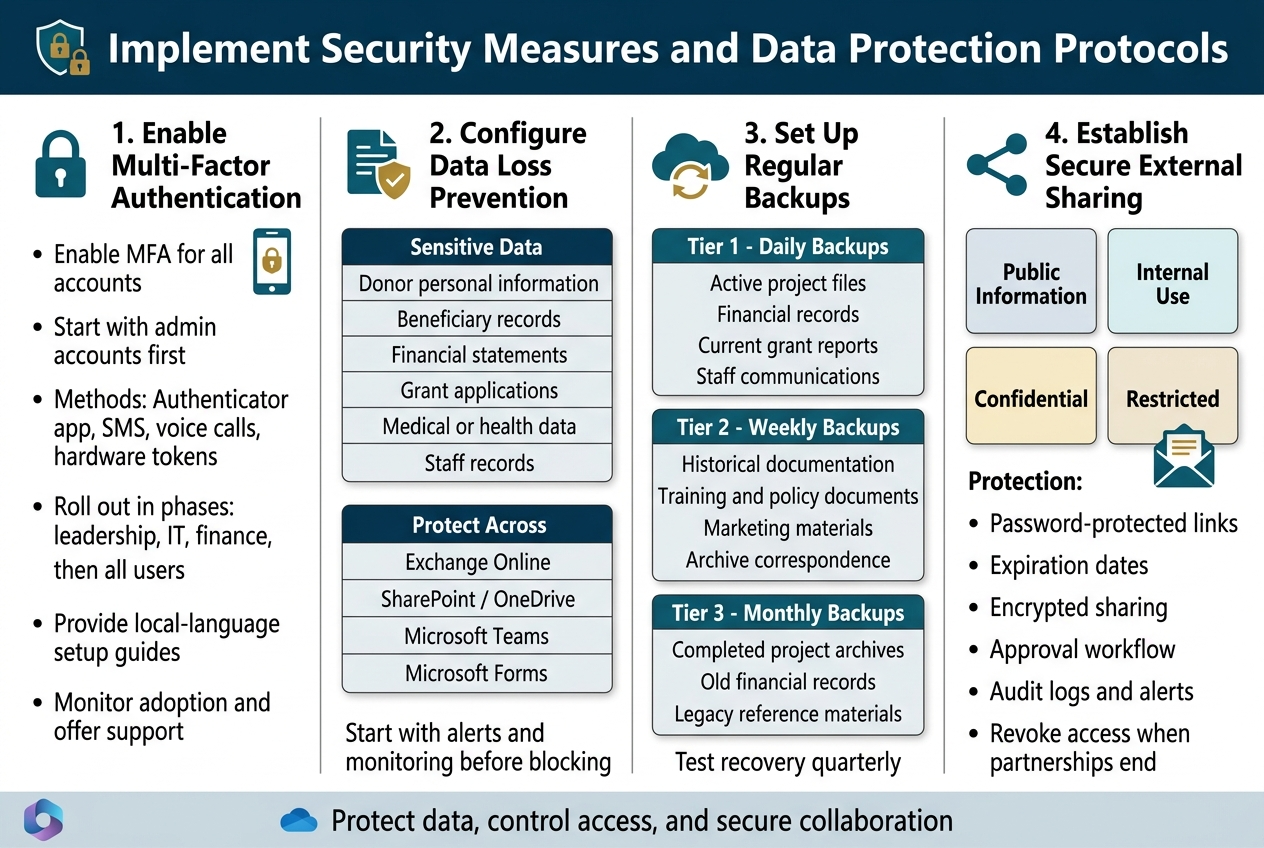
Enable Multi-Factor Authentication for All User Accounts
Getting multi-factor authentication (MFA) up and running across your NGO represents one of the smartest security moves you’ll make during your Microsoft 365 migration. Think of MFA as adding a deadbolt to your digital front door – even if someone gets hold of a password, they can’t waltz into your systems without that second layer of protection.
Your first step involves accessing the Microsoft 365 admin center and navigating to the Security & Compliance section. Here, you’ll find the MFA configuration settings where you can establish policies for your entire organization. Start by enabling MFA for all administrative accounts first – these high-privilege accounts pose the biggest risk if compromised.
Microsoft 365 offers several MFA methods that work well for NGOs operating in Uganda’s varied connectivity environments:
- Microsoft Authenticator app: Works offline and provides push notifications when internet is available
- SMS text messages: Reliable backup when smartphone apps aren’t feasible
- Voice calls: Essential for staff who might not have smartphones or reliable data connections
- Hardware tokens: Best for leadership roles requiring maximum security
Roll out MFA in phases rather than forcing everyone to adopt it overnight. Begin with senior management and IT staff, then expand to program coordinators, financial team members, and finally all remaining users. This phased approach lets you address technical hiccups and resistance without paralyzing operations.
Create clear documentation showing staff exactly how to set up their chosen MFA method. Include screenshots and step-by-step instructions in local languages where appropriate. Consider the varying tech comfort levels among your team – what seems obvious to younger staff might confuse long-time employees who primarily use basic mobile phones.
Monitor MFA adoption through the admin dashboard and provide additional support for users struggling with setup. Some staff might need hands-on assistance, especially when dealing with older smartphones or limited internet connectivity common in rural Uganda.
Configure Data Loss Prevention Policies for Sensitive Information
Data loss prevention (DLP) policies act like security guards for your most sensitive information, automatically detecting and protecting critical data before it leaves your organization inappropriately. For Ugandan NGOs handling donor information, beneficiary records, financial data, and program reports, DLP policies prevent accidental or intentional data breaches that could damage relationships and violate privacy regulations.
Start by identifying what constitutes sensitive information within your organization. This typically includes:
- Donor personal information and contact details
- Beneficiary records containing personal identifiers
- Financial statements and budget information
- Grant applications and funding proposals
- Medical or health program data
- Staff employment records and salary information
Microsoft 365’s DLP engine recognizes common data patterns like passport numbers, national ID formats, bank account numbers, and credit card information. You can also create custom data types specific to your NGO’s needs, such as donor ID numbers or internal project codes.
Build your DLP policies starting with the most critical data categories. Create separate policies for different information types since they might require different protection levels. For instance, beneficiary medical records need stricter controls than general program reports.
Configure your policies to detect sensitive information across multiple Microsoft 365 services:
| Service | Protection Focus | Key Settings |
|---|---|---|
| Exchange Online | Email attachments and content | Block external sharing, encrypt automatically |
| SharePoint/OneDrive | Document libraries and file sharing | Restrict access permissions, prevent downloads |
| Microsoft Teams | Chat messages and file sharing | Monitor conversations, control guest access |
| Microsoft Forms | Survey responses and data collection | Encrypt responses, limit access to results |
Set up policy actions that match your organization’s risk tolerance. Start with monitoring and alerts rather than immediately blocking actions – this helps you understand normal data flow patterns before implementing stricter controls. Gradually increase restrictions as staff become familiar with the new security measures.
Create exception rules for legitimate business needs. Your finance team might need to share certain financial documents with auditors, or program managers might share beneficiary reports with donors. Design your policies to accommodate these necessary activities while maintaining security.
Set Up Regular Backup Schedules for Critical NGO Data
Even with Microsoft 365’s built-in data protection features, maintaining independent backups of your critical NGO data provides an extra safety net against accidental deletions, corruption, or service disruptions. Your backup strategy should protect against both technical failures and human errors that could impact your operations.
Microsoft 365 includes basic data protection through its recycle bins and version history features, but these have limitations. Deleted items only remain recoverable for specific time periods, and version history has storage limits. For comprehensive protection, you need a more robust backup approach.
Identify which data requires backup priority based on your NGO’s operations:
Tier 1 (Daily Backups):
- Active project files and documentation
- Financial records and donor information
- Current grant applications and reports
- Staff communications and decision records
Tier 2 (Weekly Backups):
- Historical project documentation
- Training materials and policy documents
- Marketing and communication materials
- Archive correspondence
Tier 3 (Monthly Backups):
- Completed project archives
- Old financial records (beyond current fiscal year)
- Legacy documents and reference materials
Consider using Microsoft’s native backup capabilities alongside third-party solutions. For Exchange Online, enable litigation hold for key personnel and configure retention policies that align with your document management requirements. SharePoint and OneDrive offer versioning and recycle bin features that provide short-term protection.
Evaluate dedicated backup services designed specifically for Microsoft 365 environments. These solutions offer features like point-in-time recovery, granular restore options, and unlimited retention periods. Popular options include Veeam Backup for Microsoft 365, Barracuda Cloud-to-Cloud Backup, and CommVault.
Test your backup and recovery processes regularly. Schedule quarterly restoration tests using non-critical data to verify that your backups work correctly and that staff know how to request data recovery when needed. Document the recovery process so multiple team members can handle restoration requests.
Store backup copies in multiple locations when possible. While Microsoft 365 data centers provide geographic redundancy, having local backups can speed recovery for frequently accessed information and provide protection against broader service disruptions.
Establish Protocols for Sharing Documents with External Partners
Your NGO regularly collaborates with donors, government agencies, implementing partners, and community organizations, making secure document sharing protocols essential for maintaining trust and protecting sensitive information. These protocols need to balance accessibility with security while accommodating the varying technical capabilities of your external partners.
Create a document classification system that determines appropriate sharing methods based on sensitivity levels:
Public Information: Program summaries, public reports, and general organizational information can be shared freely through standard email attachments or public SharePoint sites.
Internal Use: Staff directories, internal policies, and routine correspondence require basic access controls but can be shared with trusted partners through password-protected links.
Confidential: Donor information, detailed financial reports, and strategic plans need encrypted sharing with specific access permissions and expiration dates.
Restricted: Highly sensitive data like beneficiary medical records or security assessments requires the highest protection level with multi-factor authentication and audit trails.
Set up external sharing permissions in SharePoint and OneDrive that align with these classification levels. Configure default settings to require authentication for sensitive documents and set automatic expiration dates for shared links. This prevents documents from remaining accessible indefinitely when partnerships end or projects conclude.
Use Microsoft 365’s built-in sharing features strategically. For ongoing collaborations, create dedicated SharePoint sites with external partner access rather than relying on email attachments. These sites provide better version control, audit capabilities, and permission management than traditional file sharing methods.
Implement a approval workflow for sensitive document sharing. Before staff can share confidential information externally, require approval from supervisors or designated security personnel. This extra step prevents accidental over-sharing while maintaining documentation of who has access to what information.
Train your external partners on secure document handling practices. Provide clear instructions on how to access shared documents, what actions are permitted, and how to report security concerns. Consider creating simple guides that accommodate partners with limited technical experience.
Monitor external sharing activities through Microsoft 365’s audit logs and sharing reports. Regular review of these logs helps identify unusual sharing patterns, forgotten access permissions, or potential security issues. Set up alerts for high-risk activities like sharing with unverified external users or downloading large amounts of data.
Create procedures for revoking access when partnerships end or staff leave partner organizations. Maintain a registry of all external sharing arrangements with renewal dates and responsible staff members. This ensures that access permissions don’t outlive the business relationships that justified them.
Establish clear communication channels for handling security incidents related to document sharing. If a partner reports a potential breach or if you discover unauthorized access, have pre-defined steps for investigating the incident, containing any damage, and preventing future occurrences.
Consider using Microsoft Information Protection labels to automatically apply appropriate sharing restrictions based on document content. These labels can prevent users from accidentally sharing sensitive documents through inappropriate channels and provide consistent protection regardless of where documents are stored within your Microsoft 365 environment.
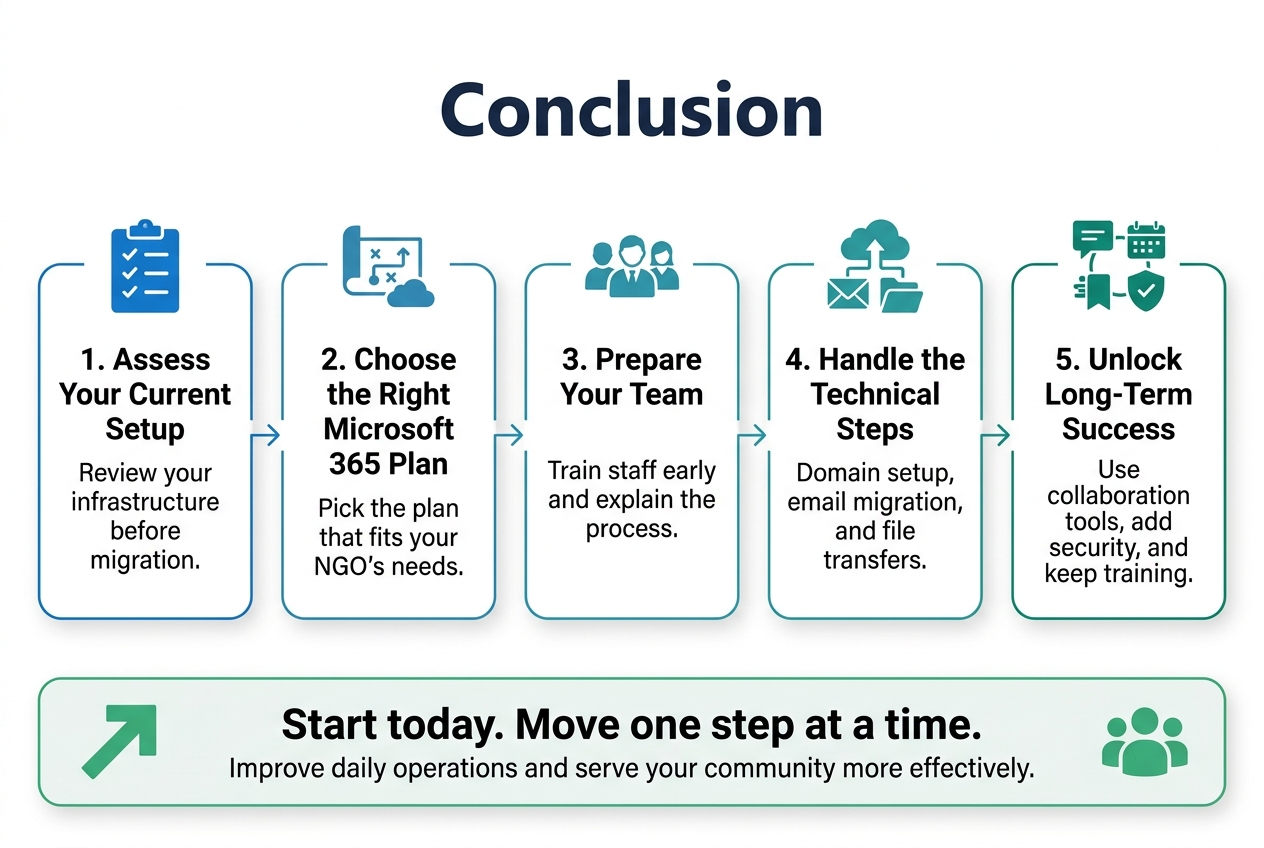
Moving your Ugandan NGO to Microsoft 365 doesn’t have to be overwhelming when you break it down into manageable steps. By carefully assessing your current setup, picking the right plan, and preparing your team, you’re setting the foundation for success. The technical aspects like domain configuration, email migration, and file transfers become much smoother when you’ve done the groundwork properly.
Your NGO will see real benefits once everything is in place – better collaboration, stronger security, and tools that actually help your team work more efficiently. Don’t rush the training phase, as this is where your investment really pays off. Take time to explore all the features Microsoft 365 offers and gradually introduce them to your staff. With proper planning and execution, this migration will transform how your organization operates and serves the communities you’re working to support.

Tech Evangelist and Business Developer.
I love connecting with nature